

Updating your resume on LinkedIn is not just a formality. Today, recruiters search LinkedIn before they even ask for a CV. If your LinkedIn resume is outdated, you miss job calls even if your skills are strong.
Updating your resume on LinkedIn is not just about uploading a PDF. It’s about keeping your profile fresh, searchable, and recruiter-ready. Whether you’re using a mobile app or laptop, LinkedIn gives multiple ways to update your resume and professional details.
This guide explains how to update resume in LinkedIn mobile app, how to update resume in LinkedIn profile, and how to update resume in LinkedIn in laptop, with clear steps, tables, and visuals.
Why Updating Resume in LinkedIn Matters
Recruiters don’t just read resumes — they search LinkedIn profiles.
| Reason | Why It’s Important |
| Visibility | Updated profiles rank higher in search |
| Credibility | Shows you’re active and professional |
| Job Matching | LinkedIn recommends jobs based on profile |
| Recruiter Reach | Recruiters contact updated profiles more |
| Career Growth | Reflects latest skills & experience |
Fact: Most recruiters check LinkedIn before downloading resumes.
Ways to Update Resume in LinkedIn (Overview)
There are three main ways to update your resume-related information.
| Method | Where It Shows | Best For |
| Upload Resume | Job applications | Job seekers |
| Update Profile Sections | Public profile | Visibility |
| Featured Resume | Profile highlight | Personal branding |
What Does “Resume” Mean on LinkedIn?
LinkedIn works differently from a traditional resume. Your profile itself acts as a live resume that recruiters can search anytime.
LinkedIn Resume vs Traditional Resume
| Factor | LinkedIn Resume | Traditional Resume |
| Format | Online profile | PDF / Word |
| Updates | Anytime | Only when shared |
| Visibility | Public / Recruiters | Private |
| Skills | Searchable keywords | Manual |
| Networking | Yes | No |
Key point: LinkedIn resume is dynamic, not static.
Why Updating Resume in LinkedIn Is Important
Recruiters rely heavily on LinkedIn search results.
Recruiter Behavior (Global Trend)
| Activity | % Recruiters Using LinkedIn |
| Candidate search | 87% |
| Resume screening | 78% |
| Skill verification | 65% |
| Background check | 55% |
If your profile is not updated, you simply don’t appear.
Step-by-Step: How to Update Resume in LinkedIn Profile
Step 1: Update Headline (Most Important)
Your headline is the first thing recruiters see.
| Old Style Headline | Optimized Headline |
| Software Engineer | Software Engineer |
| Marketing Manager | Digital Marketing Manager |
Tip: Use job-related keywords naturally.
Step 2: Update About Section (Summary)
| What to Add | Why It Matters |
| Current role | Shows relevance |
| Skills | Improves search |
| Achievements | Builds trust |
| Career goal | Attracts right roles |
Simple Example:
“I work as a digital marketer with 3+ years of experience in SEO, content, and paid ads. I enjoy solving business problems using data and creativity.”
Skills Section: Resume Powerhouse on LinkedIn
| Skill Type | Examples |
| Technical skills | Excel, Python, SEO |
| Soft skills | Communication, Leadership |
| Tools | Google Analytics, Canva |
| Industry skills | Sales strategy, HR operations |
Add 15–25 relevant skills for better visibility.
Experience Section: Resume Core Area
| What Recruiters Check | What You Should Add |
| Job title | Clear & keyword rich |
| Company name | Official spelling |
| Work summary | Short & result-based |
| Metrics | Numbers & outcomes |
Example
| Before | After |
| Worked on SEO | Improved organic traffic by 40% |
Education & Certifications
| Section | Best Practice |
| Education | Degree + institute |
| Certifications | Add online & offline |
| Courses | Relevant to job role |
Certifications increase profile trust.
Upload Resume File on LinkedIn
LinkedIn allows resume upload separately.
How to Upload Resume in LinkedIn
| Step | Action |
| 1 | Go to profile |
| 2 | Click “More” |
| 3 | Select “Build a resume” |
| 4 | Upload PDF/DOC |
Keep resume 1–2 pages max.
Privacy Settings for Resume
| Setting | Recommended |
| Resume visibility | Recruiters only |
| Open to work | ON |
| Profile viewing | Public |
How to Update Resume in LinkedIn Mobile App (Step-by-Step)
Steps (Mobile App)
| Step | Action |
| 1 | Open LinkedIn app |
| 2 | Tap your profile photo |
| 3 | Tap “View Profile” |
| 4 | Scroll to Featured |
| 5 | Tap “+” → Add media |
| 6 | Upload resume (PDF/DOC) |
| 7 | Save changes |
Your resume is now visible to profile visitors.
How to Update Resume in LinkedIn Profile (Profile Sections)
Instead of uploading a resume, smart professionals update profile sections.
Sections to Update (Most Important)
| Profile Section | What to Update |
| Headline | Job title + skills |
| About | Career summary |
| Experience | Latest roles |
| Skills | Relevant keywords |
| Education | Degrees & courses |
Recruiters care more about profile content than resume files.
How to Update Resume in LinkedIn App (Experience & Skills)
Update Experience
| Step | Action |
| Open profile | Tap pencil icon |
| Add role | Job title & company |
| Description | Achievements |
| Save | Update live |
Update Skills
| Skill Action | Tip |
| Add skills | Match job keywords |
| Remove old | Keep relevant |
| Reorder | Top skills first |
How to Update Resume in LinkedIn in Laptop (Desktop Method)
Upload Resume for Jobs
| Step | Action |
| 1 | Login on laptop |
| 2 | Go to Jobs |
| 3 | Click “Easy Apply” |
| 4 | Upload resume |
| 5 | Save resume |
This resume is not public, only used for applications.
What Recruiters Check First on LinkedIn
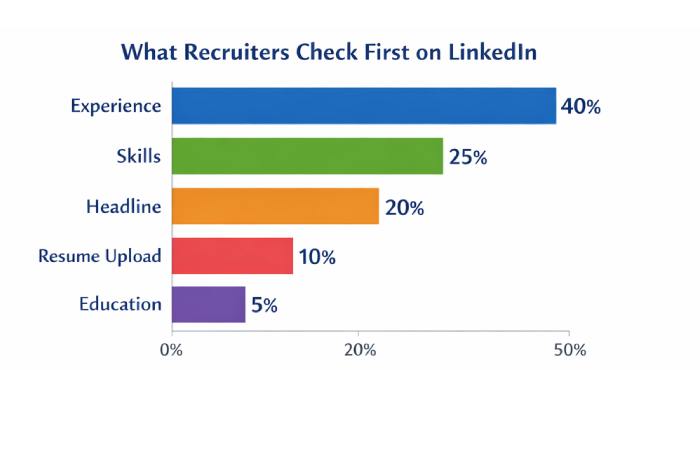
| Profile Element | Importance (%) |
| Experience | 40% |
| Skills | 25% |
| Headline | 20% |
| Resume Upload | 10% |
| Education | 5% |
Profile content matters more than resume upload.
How Professionals Update LinkedIn
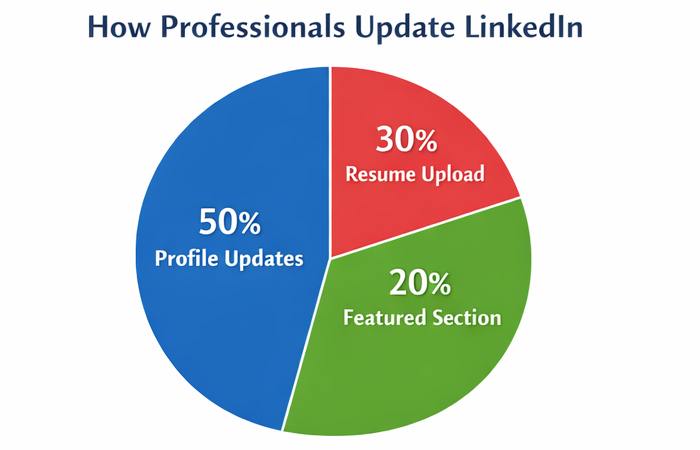
| Method | Share |
| Profile updates | 50% |
| Resume upload | 30% |
| Featured section | 20% |
Best results come from combining all three.
Profile Views After Resume Update
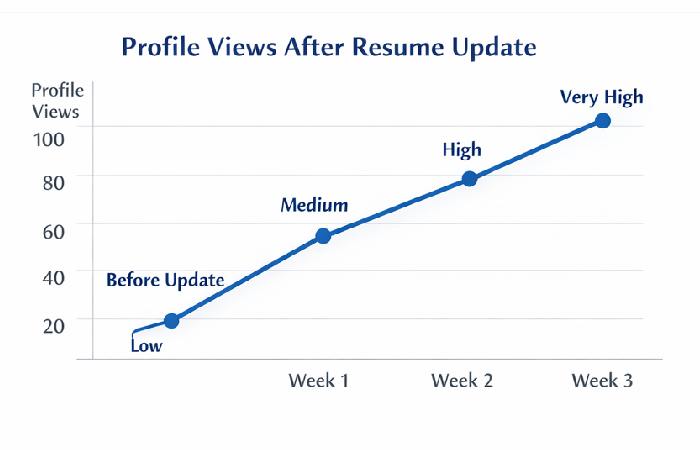
| Week | Profile Views |
| Before update | Low |
| Week 1 | Medium |
| Week 2 | High |
| Week 3 | Very High |
Updated resumes = more visibility.
Resume vs LinkedIn Profile (Important Difference)
| Resume | LinkedIn Profile |
| Static | Dynamic |
| One version | Always updated |
| Private | Public |
| Limited keywords | SEO-friendly |
Best strategy: Keep both aligned.
Common Mistakes While Updating Resume in LinkedIn
| Mistake | Why It Hurts |
| Old job titles | Reduces visibility |
| Missing skills | Fewer searches |
| Long paragraphs | Hard to read |
| No keywords | Poor ranking |
| No updates | Looks inactive |
SEO Tips for LinkedIn Resume & Profile
| Tip | Benefit |
| Use job keywords | Higher search rank |
| Numbers in experience | More credibility |
| Action verbs | Strong impact |
| Consistent titles | Recruiter trust |
| Update monthly | Stay relevant |
Quick Checklist Before You Finish
| Task | Done? |
| Resume uploaded | ⬜ |
| Experience updated | ⬜ |
| Skills optimized | ⬜ |
| Featured section added | ⬜ |
| Mobile + laptop checked | ⬜ |
Final Thoughts
Knowing how to update resume in LinkedIn — whether on mobile app, LinkedIn app, profile, mobile, or laptop — gives you a huge advantage in today’s job market.
LinkedIn is no longer optional.
It’s your digital resume, portfolio, and networking tool combined.
If your LinkedIn profile is updated, opportunities come to you — not the other way around.

